How to demo Tabloto
The demo building as a sales instrument: the accounts, the meeting script, and why nothing can break.
You do not show a video and you do not narrate — you open the real app and let the prospect touch it. That is the difference. Here is how.
The demo building
There is a ready building for demos — жк Липите, бл. 4. It is fictional (no real clients, no real names), on the Premium plan, with everything switched on and full of data — four months of readings, invoices, payments, arrears, funds, issues, a poll, the register.
The part that sells: there is nothing to install and nothing to set up. You open a link in the browser on a phone or a computer and you are in. That is exactly what the customer will do afterwards — which is why you show it this way.
Open the demo Opens in a new tab.
The accounts
Three accounts, one per role. The login is public and the same for all three — the password comes with your demo access; you do not type it from memory.
Open the demo Opens in a new tab.
- Committee (
committee@demo.tabloto.app) — the full operator picture: readings, invoices, money, documents, polls. You show most things from here. - Owner (
owner.9@demo.tabloto.app) — what a resident sees: their invoices and what they owe, their apartment’s readings, the polls. Nothing of anyone else’s. - Caretaker (
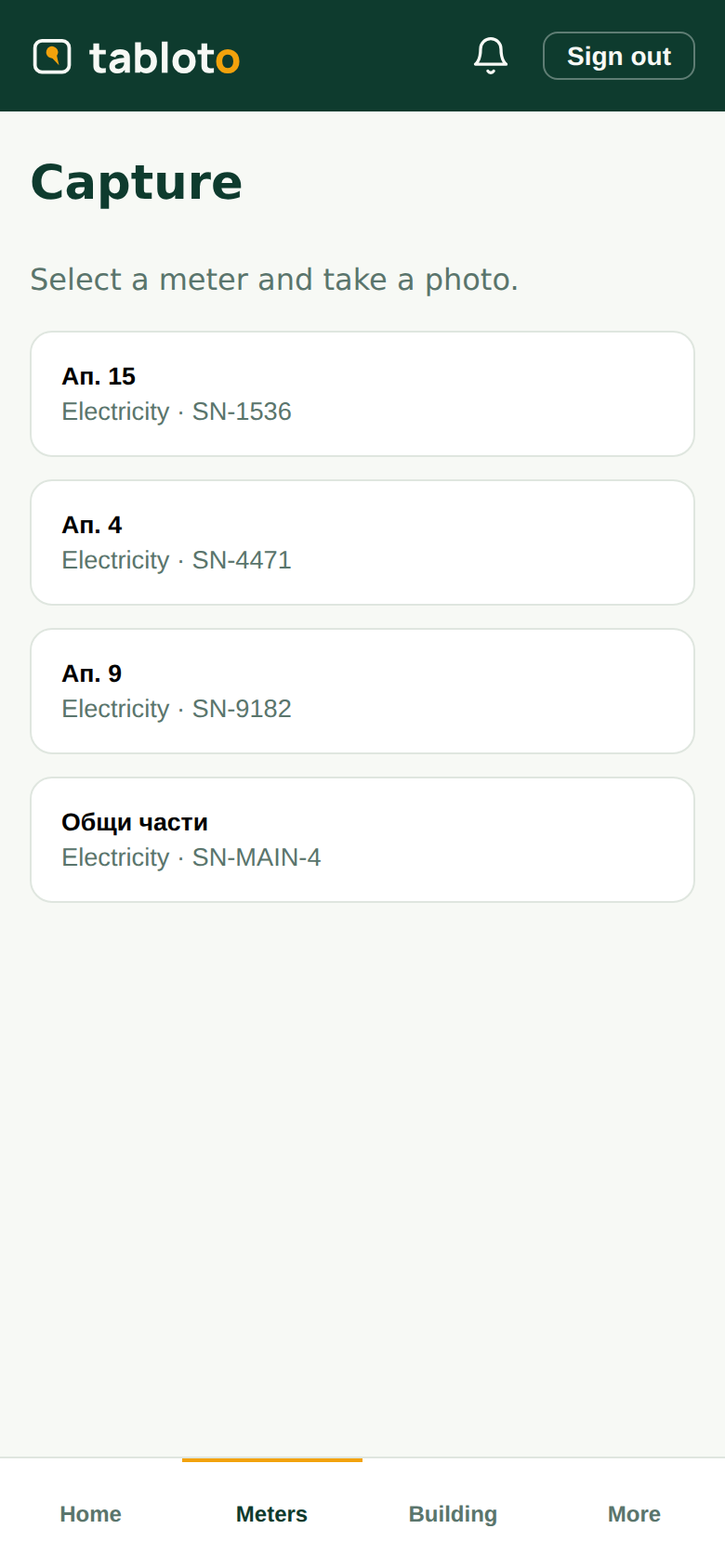
caretaker@demo.tabloto.app) — the photo moment: you walk the meters and take a photo, nothing more.
You sign in and out between the accounts to show one building from three points of view.
The meeting script
One line per step, in the order that works in front of a prospect:
- Photo → reading — as the caretaker, photograph a meter; the digits fill themselves in. This is the moment that sells. → Photographing a meter reading
- Review — as the committee, show how the doubtful readings come first and how a person confirms them. → Readings and review
- Invoice — enter the supplier’s bill and, with one button, it splits across the apartments, to the cent. → Billing
- The owner’s invoice — sign in as an owner and show how a resident sees what the amount is made of and how they pay. → My invoices and paying
- A poll — back as the committee, open a poll: asking the building between assemblies. → Polls
- Transparency — the finale: the cash view, the fund balances, who owes what — all in one place and all checkable. → Money: payments, arrears, funds
The whole loop in five minutes, live, on real data.
The reset
The demo building resets every night, automatically. Whatever happened during the day — deleted rows, added invoices, scrambled settings — is gone by morning: the building returns to the clean demo state.
So tell the prospect straight out: touch everything. Press every button, change every number, delete whatever you like. Nothing can break — this is not a customer’s building, it is a demo, and it all comes back in the morning. People demo more boldly once they know they cannot ruin anything.
The “demo” banner
A yellow “Demo” bar sits at the top of every screen. It says exactly what you already told the prospect: you are looking at a demo building with fictional data that resets every night, and someone else may be looking at it right now.
Do not hide it or apologise for it — it is part of the demo’s honesty. A customer’s real building has no such bar.
Before the meeting
- Open
/docson your phone — so this script is to hand. - Know the login — which account for which part of the story (see above).
- If the building looks scrambled from an earlier demo, request a reset before the meeting rather than waiting for the night. Otherwise the nightly reset does the job.