Expenses — by hand and from a photo
How an expense is recorded, and how a photo of the supplier's invoice fills the fields for you.
By hand
Money → Finance → New expense.
- amount — as printed on the invoice;
- fund — which fund the money leaves. This is a decision, not arithmetic: the lift is usually maintenance, replacing a riser is a repair. Tabloto suggests maintenance and leaves the choice to you;
- category — what it is for (lift, cleaning, repair, insurance…);
- date, description;
- vendor — optional, if the expense is under a contract;
- issue — optional, if the expense closes an issue.
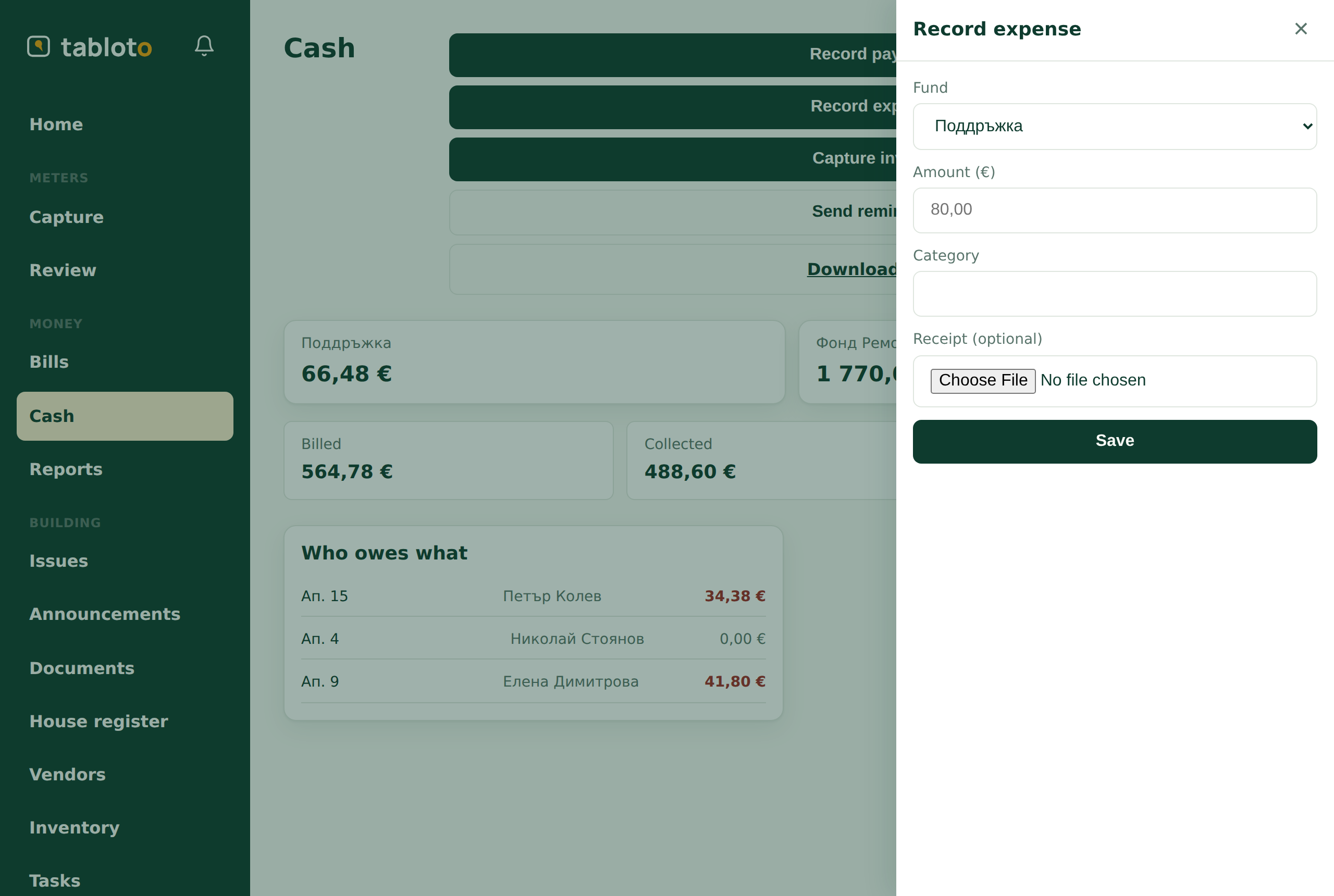
The expense enters the ledger immediately and lowers the fund’s balance — because the balance is the sum of the movements.
From a photo (Premium)
If the building is on the Premium plan, instead of copying the invoice out, you photograph it.
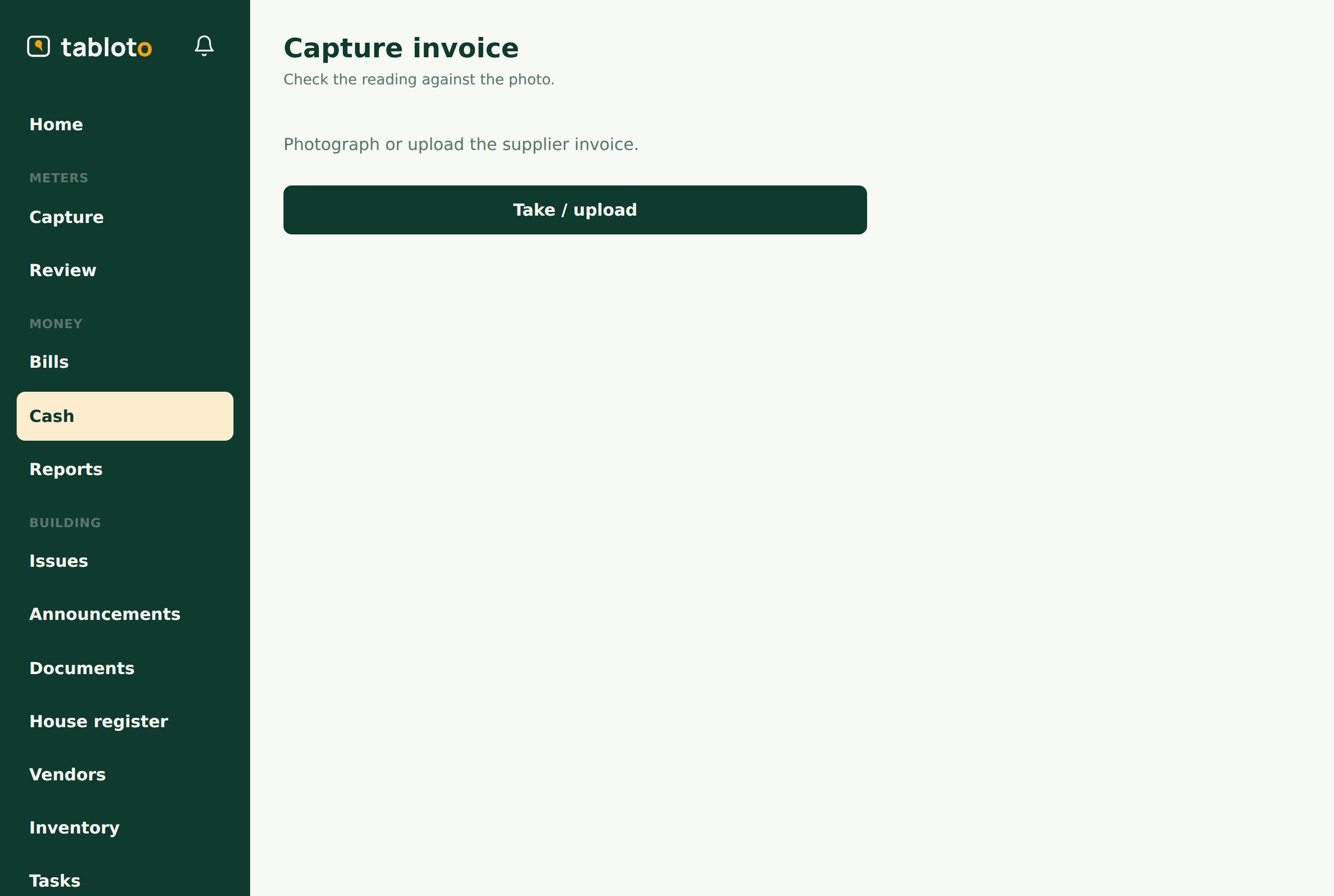
Money → Finance → Capture invoice.
You take the photo. The AI reads it and fills in amount, date, supplier, category. You check and confirm. Only then is the expense recorded — through the same path the manual one takes. There is no second, parallel way for money to get in.
Fields the AI filled are marked as provisional until you confirm them. The photo sits next to them — you check against the invoice itself, not against your memory.
What it does and does not do
- The photo is always attached to the expense — read or not. It is the proof; if someone asks a year later “what was this 240 for”, the answer is right there.
- The fund is never guessed. The AI does not know whether this repair comes from maintenance or from the repair fund — that is the committee’s decision. The suggestion is maintenance; the choice is yours.
- A vendor is suggested, never created. If the name resembles an existing vendor, Tabloto offers to link them. It never creates a new vendor on its own.
- IBAN and company ID are shown so you can check them — and never stored. You see them on screen against the invoice, and that is all; they do not enter Tabloto. We have no need for them.
- If the photo cannot be read, the ordinary form opens — with the photo already attached. You type the amount in. The AI assists; it stops nothing.
The categories the AI may return are the same ones expenses are grouped by in the annual report. It does not invent new ones: if unsure it says “other”, and you decide.